Electronics! It’s one
of my personal pending subjects and, well, I’m making progress little by little.
At least with this costume my aim was to make it better than with the
Commander Shepard one, so I started soldering and adding some basic components.
This costume has, on one hand, several LED lights and, on the other, a servo
controlled with Arduino.

I want to warn you: This post is going to be
difficult for me and maybe I don’t explain myself correctly because I’m a newie
in all this stuff.
Let’s begin with the lighting because it’s the
easy part.
I used COB (chip on board) LEDs, that is a technology
consisting in Multi LED chips packaged together as one lighting module. This
kind of lights increases the light area so they shine brighter than the regular
ones, they dissipate heat more efficiently and they use to work with 12V
batteries. Besides that, these LEDs come in different formats, so I chose
different shapes for different parts of my armor. I chose the ice blue color.

 |
| Shiny AF |
According to my experience, you can find cheap COB
LEDs on Deal Extreme and they work ok. As you may already know, shipping times
are unpredictable, so you have to place your order, at least, one month in advance.
To make the
circuits I bought:
I used a soldering iron and tin to join
everything together.
This is the circuit we did. Each light goes in
different parts of the armor, so I made one circuit per LED. As all of them
work with 12V and the batteries have that power, I didn’t have to use any
resistor.

Things to have in mind:
–
As every LED capsule has a different
format, you have to pay attention and look for the correct place for the anode
(+) and cathode (-). It’s very easy to distinguish, but the symbols sometimes
are super tiny.
–
–
When soldering the components you
must know that:
o
The positive wire of the battery
goes together with the middle pin of the switch.
o
The positive wire from the led goes
to one of the lateral pins in the switch (any of them). This is what allows you
to cut or let pass the current to the LED.
o
The negative of the LED goes
soldered to the negative of the battery.
This way you’ll have your circuit ready. I take this chance to thank Mac Cougar his help with the displays. I designed them in Photoshop and he laser carved them. Super nice detail!

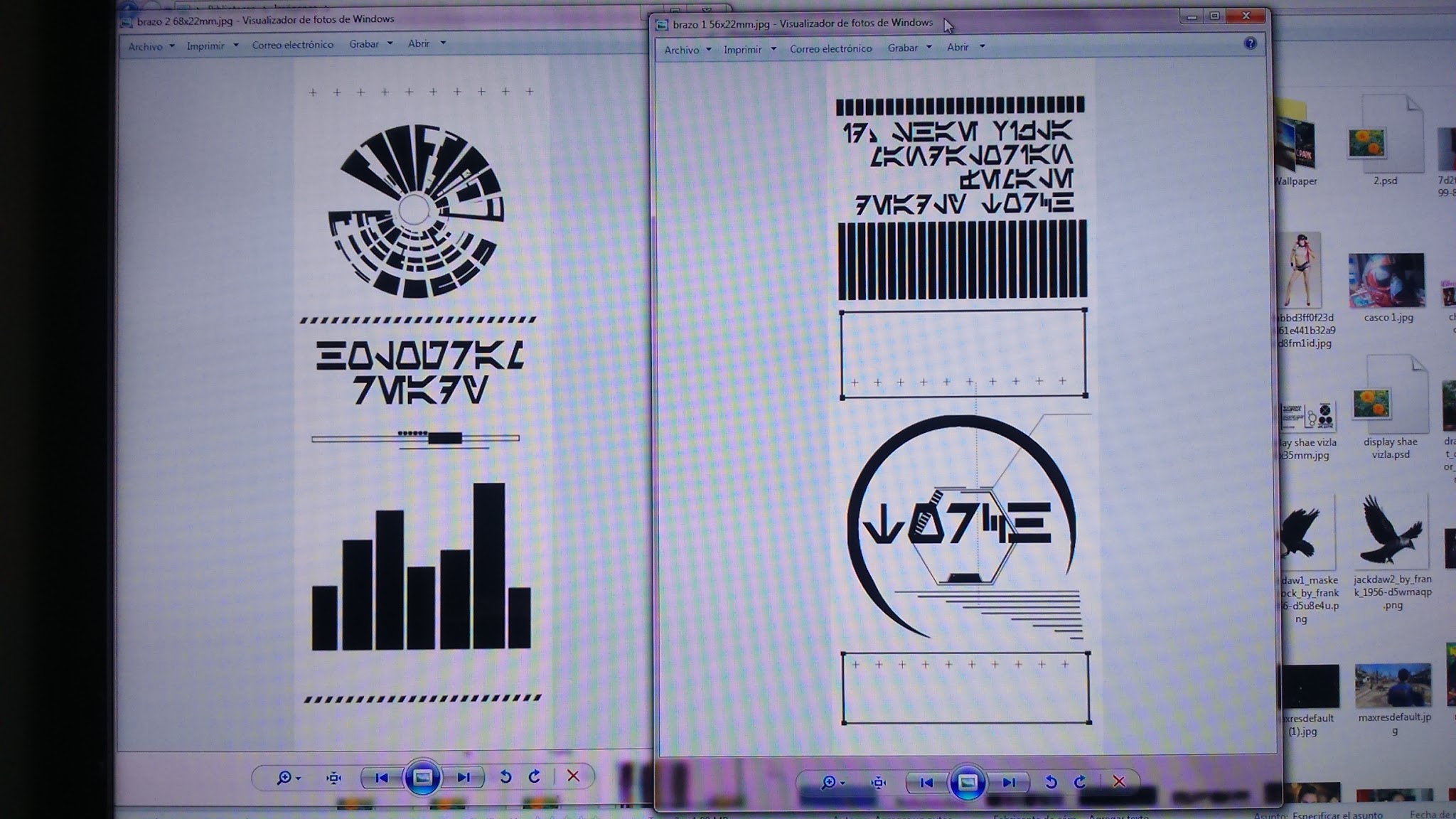

To have a moving rangefinder ,I used a little servo
controlled by an Arduino board. Someday, when I feel more confident in this
subject, I’ll talk deeper about Arduino, its laguange, simple programs, etc. By
now, I barely know how to write a simple code from scratch. I just can
recognize different parts of a code and I’m able to alter them to my needs. And
that’s what I did: I found a code to activate the servo with a button, make it
move to X degrees, push the button again and move it back to the initial
position. So I changed the values for it
to turn 80 degrees in 20 milliseconds. I did nothing more!
I looked for the code in so many webpages that
right now I’ve been unable to find the one which I took it from. (If you’re the
creator, please tell me and I’ll give you credit).
I first tried the circuit in my starter pack Arduino Uno and then I made it in an Arduino Micro for it to fit into the helmet. This is the circuit scheme:
 |
| Arduino UNO |

 |
| Arduino Micro |

And this is the code with some explanations of
my own and of the original creator in the lines I understand in case you want to copy and alter it.
#include
<Servo.h> //Include servo library.
// constant
variables used to set servo angles, in degrees
const int straight = 0; //El motor parte de 0°/ servo starts in 0°
const int divergent =80; //El motor termina en 80°/ Servo moves 8°
// constant
variables holding the ids of the pins we are using
const int
buttonpin = 8; //This pin receives the button info when pressed.
const int
servopin = 9; //Servo receives information from this pin.
// servo movement
step delay, in milliseconds
const int step_delay = 20; //20 miliseconds
//create a
servo object
Servo
myservo;
// global
variables to store servo position
int pos =
straight; // current
int old_pos
= pos; // previous
void
setup()
{
// set the mode for the digital pins in use
pinMode(buttonpin, INPUT);
// setup the servo
myservo.attach(servopin); // attach to the servo on pin 9
myservo.write(pos); // set the initial servo
position
}
void loop()
{
// start each iteration of the loop by reading
the button
// if the button is pressed (reads HIGH), move
the servo
int button_state = digitalRead(buttonpin);
if(button_state == HIGH){
old_pos = pos; // save the current position
// Toggle the position to the opposite
value
pos = pos == straight ? divergent:
straight;
// Move the servo to its new position
if(old_pos < pos){ // if the new angle is higher
// increment the servo position from
oldpos to pos
for(int i = old_pos + 1; i <= pos;
i++){
myservo.write(i); // write the next
position to the servo
delay(step_delay); // wait
}
} else {
// otherwise the new angle is equal or lower
// decrement the servo position from
oldpos to pos
for(int i = old_pos – 1; i >= pos;
i–){
myservo.write(i); // write the next
position to the servo
delay(step_delay); // wait
}
}
}
}// end of
loop
And that’s it! To upload the code to the board,
you just have to connect it via USB to your PC, select the port and your
specific Arduino board name, copy it to the software , compile, upload it and
it should work.
This has been my first Arduino Project. I know
it’s quite simple and I still have a lot to learn, but it means a little
personal success for me and I’m pretty proud. Hope I encouraged you to try it!
Feel free to comment anything down below or in
my social media. I’d highly appreciate if you correct me in case you’ve seen
something wrong in this entry.
Thanks for Reading!